
EDA in Individual Mode
Exploratory Data Analysis (EDA) enables you to gain a better understanding of a dataset by allowing you to examine summary statistics without requiring access to row-level information.
EDA is particularly useful as a prerequisite step to federated modelling. Privacy of the row-level data is ensured by a built-in Differential Privacy (DP) mechanism. DP is dynamically added to each histogram that is generated for each feature in a participating dataset. The added privacy protection causes slight noise in the end result.
In our data consumer/provider evaluation workflow, EDA individual is used to check the marginal distribution of a provider’s features.
Dataset information
Specify the datasets to be used in the evaluation. These datasets must be registered in your workspace before they can be used in the notebook. Information about registering datasets is available here for AWS and here for Azure.
provider_dataset_name = "syn_data_realistic_v1_vendor"
provider_client = "realistic_provider"

# specify features for eda session
provider_raw_features = ["raw_features": ["has_basement_imputed",
                       "use_imputed",
                       "constructions_imputed",
                       "floor_level_imputed",
                       "height_imputed",
                       "storeys_imputed"]]

# set up the task builder that will run the tasks
iai_tb_aws_provider = IntegrateAiTaskBuilder(client=client, task_runner_id="")
Note: You do not need to specify the task runner name, but the variable name is required. This variable will be removed in an upcoming release.
Configure an EDA Session
Specify the data config dictionary
We recommend running EDA on raw features, in order for you to examine the characteristics of the original data.
The eda_raw_data_config file is a configuration file that maps the name of one or more datasets to the columns to be pulled. Dataset names and column names are specified as key-value pairs in the file.
eda_raw_data_config = {provider_client: provider_raw_features}
For each pair, the keys are dataset names that are expected for the EDA analysis. The values are a list of corresponding columns. The list of columns can be specified as column names (strings), column indices (integers), or a blank list to retrieve all columns from that particular dataset.
If a dataset name is not included in the configuration file, all columns from that dataset are used by default.
For example:
To retrieve all columns for a submitted dataset named dataset_one:
eda_data_config = {"dataset_one": []}
To retrieve the first column and the column x2 for a submitted dataset named dataset_one:
eda_data_config = {"dataset_one": [1,"x2"]}
To retrieve the first column and the column x2 for a submitted dataset named dataset_one and all columns in a dataset named dataset_two:
eda_data_config = {"dataset_one": [1,"x2"],"dataset_two": []}
Create the EDA session
Create and start the EDA session
raw_eda_individual_session = client.create_eda_session(
        name="Phase 1 eval - EDA individual raw",
        description="This is an optional long description field for the session information.",
        data_config=eda_raw_data_config,
        eda_mode="individual"
        #single_client_2d_pairs = None      #Optional - only required to generate 2d histograms
    ).start()

    task_group = (
        SessionTaskGroup(raw_eda_individual_session)
        .add_task(iai_tb_aws_provider.eda(dataset_name=provider_dataset_name, client_name=provider_client))
    )

    task_group_context = task_group.start()

    print("eda individual raw: ", raw_eda_individual_session.id)     #Prints the session ID for reference
Note: The name of the session does not need to include raw or individual. It is used here to differentiate between session types. You could specify simply eda_session.
Session parameters
eda_mode= One of {‘individual’,’intersect’}. Defaults to ‘individual’.single_client_2d_pairs(Dict, optional): a data_config like dict with the column names to use to generate 2d-histograms when both columns belong to same dataset. This option only considers the single node 2d-histograms and is valid for both ‘intersect’ and ‘individual’ mode. Defaults toNonewhich means that no local 2d-histogram is generated.
Unlike other sessions, you do not need to specify a model_config file for EDA. This is because there are no editable model parameters.
Wait for the session to complete. Session details are displayed on the Sessions page in your workspace UI. Use the session ID to identify your session.
Tip
Ending an EDA Session manually
For EDA in Individual Mode, the results of each dataset are returned independently. Therefore, if you decide to end the session prematurely and still retain the “partial” results for the completed datasets, you can call either client.end_session(\<eda_session.id\>) or eda_session.end().
Analyze the EDA results
The results object is a dataset collection comprised of multiple datasets that can be retrieved by name. Each dataset is comprised of columns that can be retrieved by either column name or by index.
You can perform the same base analysis functions at the collection, dataset, or column level.
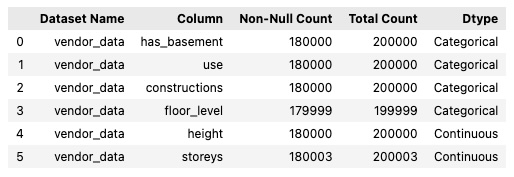
# View vendor feature fill rate
## "fill_rate_marginal" is the fill rate (of each feature) for the entire vendor data
## "fill_rate_matched" is the fill rate (of each feature) for the overlapped records between provider data and vendor data


marginal_fill_rate_df = raw_eda_individual_session.results().info()[['Column', 'Non-Null Count', 'Total Count']]
marginal_fill_rate_df['fill_rate'] = marginal_fill_rate_df['Non-Null Count'] / marginal_fill_rate_df['Total Count']

matched_fill_rate_df = raw_eda_intersect_session.results().info()[['Column', 'Non-Null Count', 'Total Count']]
matched_fill_rate_df['fill_rate'] = matched_fill_rate_df['Non-Null Count'] / matched_fill_rate_df['Total Count']

fill_rate_table = pd.merge(marginal_fill_rate_df, matched_fill_rate_df, on='Column', suffixes=('_marginal', '_matched'))
fill_rate_table
Example output:
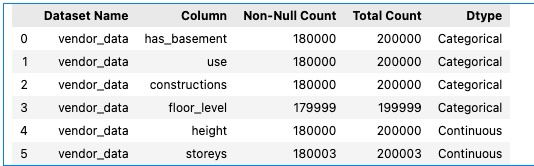
# (Optional) Check the raw vendor feature distribution and see if you want to preprocess them in a specific way

hist = raw_eda_intersect_session.results()[provider_client].plot_hist()
Example output:
raw_eda_intersect_session.results()[provider_client].describe(categorical=True).T
Example output:

Add GroupBy Plot to UI
To view the results of a session using groupby, you must first define the groups that you want to see in the UI.
This function (groupby(group_col)[target_col].mean()) generates the artifact of the given groupby and stores it in the EDA artifact for viewing through the web portal.
GroupBy Example:
_ = eda_individual_session.visualize("groupby", "groupby-{0}-{1}".format(group_col,target_col), groupby_config={
        "dataset_group": group_client,
        "feature_group": group_col,
        "dataset_target": target_client,
        "feature_target": target_col,
        "method": "mean"
    })
method can be any aggregate function, such as std, count, mean, etc.