Relevance Analysis
Triage and understand the new data relative to your existing book of business. Perform a statistical examination to assess the value of the new data by analyzing how it aligns with and enriches your existing consumer data. The outcome is to identify candidate features that show promise for enhancing model performance.
This evaluation guide implements the main workflows required to evaluate a data product:
Match Rate: How much data from a Data Provider’s data product is usable in reference to my internal data?
Fill rate: How much data is missing in the data product?
Univariate analysis: What are the distributions of the different variables in the data product before/after matching with my internal data?
Bivariate analysis: What are the relationships between different variables in the data product and my own features?
Table of Contents
Setup and Configuration
Relevance Analysis Example
Match Rate
Fill rate
EDA With Feature Preprocessing
Feature Preprocessing
EDA Intersect
Univariate Analysis
Bivariate Analysis
Setup and Configuration
Set environment variables with your IAI credentials
Generate and manage your IAI_TOKEN in your workspace.
[ ]:
from integrate_ai_sdk.api import connect
from integrate_ai_sdk.taskgroup.taskbuilder.integrate_ai import IntegrateAiTaskBuilder
from integrate_ai_sdk.taskgroup.base import SessionTaskGroup
import pandas as pd
import numpy as np
import os
import json
from matplotlib import pyplot as plt
pd.options.display.max_columns = 1000
pd.options.display.max_rows = 1000

IAI_TOKEN = ""
client = connect(token=IAI_TOKEN)
Read vendor configuration
Specify the vendor configuration file name and other parameters.
In this example, a separate configuration file is used to contain a number of parameters that do not need to be adjusted. This file is loaded with the command below.
[2]:
with open('realistic_vendor_v1_config.json', 'r') as file:
    config = json.load(file)

provider_client = config['client_name']
provider_name = config['dataset_name']
vendor_prl_config = config['prl_config']
vendor_raw_features = config['raw_features']
vendor_bivariate_features = config['bivariate_features']
vendor_eda_preprocessing_config = config['eda_preprocessing']
vendor_vfl_preprocessing_config = config['model_preprocessing']
Specify datasets and features
Specify the datasets to be used in the evaluation
Important: The task runner expects your data to be in the bucket that was created when the task runner was provisioned.
[3]:
consumer_client = 'syn_carrier'
consumer_train_name = 'syn_data_realistic_v1_carrier_train'
consumer_test_name = 'syn_data_realistic_v1_carrier_test'
Create a task builder for each client (party) in the evaluation. For example, carrier and provider.
Note: The task_runner_id can be left empty. The system determines the correct task runner to use.
[4]:
iai_tb_aws_consumer = IntegrateAiTaskBuilder(client=client, task_runner_id="")
iai_tb_aws_provider = IntegrateAiTaskBuilder(client=client, task_runner_id="")
Specify the target variable and the consumer features for the EDA session. Specify the join key for the PRL session.
[5]:
target = 'target'

provider_univariate_features = vendor_raw_features
provider_bivariate_features = vendor_bivariate_features

consumer_bivariate_features = [target]

join_key_consumer = ['id']
Relevance Analysis Example
Objective: Test the relevance of a data product via match rate, fill rate, and statistical analyses on both raw and matched records between vendor and carrier datasets.
Match Rate
Step 1: Specify the PRL data configuration. The client names are the variable names for the datasets from the “Specify datasets and features” section above.
Make sure you specify the actual column name that represents the join key as the id_column.
[6]:
prl_data_config = {
    "clients": {
        consumer_client: {
            "id_columns": join_key_consumer
        },
        provider_client: vendor_prl_config
    }
}
If you have previously run a PRL session and want to use that session instead of a new one, you can load the session by specifying its ID.
[7]:
# Optional
existing_prl_session_id = None
Step 2: Create and start PRL session. You can modify the name and description to help you differentiate it from other sessions.
This example demonstrates an if/else option that allows you to use either a previous PRL session OR to start a new one.
[8]:
if existing_prl_session_id:
    prl_session = client.session(existing_prl_session_id)
    print(existing_prl_session_id) # Prints the session ID for reference
else:
    prl_session = client.create_prl_session(
        name="Phase 1 eval - PRL",
        description="Phase 1 eval - PRL",
        data_config=prl_data_config
    ).start()

    task_group = (
        SessionTaskGroup(prl_session)
        .add_task(iai_tb_aws_consumer.prl(train_dataset_name=consumer_train_name, test_dataset_name=consumer_test_name, client_name=consumer_client))\
        .add_task(iai_tb_aws_provider.prl(train_dataset_name=provider_name, test_dataset_name=provider_name, client_name=provider_client))\
    )

    task_group_context = task_group.start()

    print(prl_session.id)      # Prints the session ID for reference
11/18/2025 13:39:12:INFO:Setting SHA256 for PRL
d562a556ae
Wait for the session to complete. Session details are displayed on the Sessions page in your workspace UI. Use the session ID to identify your session.
View the match rate
[10]:
metrics = prl_session.metrics().as_dict()
n_train = metrics['client_metrics'][consumer_client]['train']['n_overlapped_records']
summary_table = pd.DataFrame(metrics['client_metrics'][consumer_client]).T
summary_table
[10]:
| n_records | n_overlapped_records | frac_overlapped | |
|---|---|---|---|
| train | 400000.0 | 360868.0 | 0.9 |
| test | 100000.0 | 90271.0 | 0.9 |
Fill Rate
Step 1: Specify the data config dictionary
[11]:
eda_raw_data_config = {provider_client: provider_univariate_features}

existing_raw_eda_individual_session_id = None
existing_raw_eda_intersect_session_id = None
Step 2: Create and start the EDA session. You can edit the name or description of the session.
As in the PRL session example above, you can choose to use an existing session ID OR run a new session.
First we will start an EDA session in individual mode. This mode does not require a PRL session as input.
[12]:
if existing_raw_eda_individual_session_id:
    raw_eda_individual_session = client.session(existing_raw_eda_individual_session_id)
    print("eda individual raw: ", raw_eda_individual_session.id)    #Prints the session ID for reference
else:
    raw_eda_individual_session = client.create_eda_session(
        name="Phase 1 eval - EDA individual raw",
        description="",
        data_config=eda_raw_data_config,
        eda_mode="individual"
    ).start()

    task_group = (
        SessionTaskGroup(raw_eda_individual_session)
        .add_task(iai_tb_aws_provider.eda(dataset_name=provider_name, client_name=provider_client))
    )

    task_group_context = task_group.start()

    print("eda individual raw: ", raw_eda_individual_session.id)     #Prints the session ID for reference
eda individual raw: da442bc597
Next, start an EDA session in intersect mode, using the overlap from the PRL session run earlier.
[13]:
if existing_raw_eda_intersect_session_id:
    raw_eda_intersect_session = client.session(existing_raw_eda_intersect_session_id)
    print("eda intersect raw: ", raw_eda_intersect_session.id)    #Prints the session ID for reference
else:
    raw_eda_intersect_session = client.create_eda_session(
        name="Phase 1 eval - EDA intersect raw",
        description="",
        data_config=eda_raw_data_config,
        eda_mode="intersect",
        prl_session_id=prl_session.id
    ).start()

    task_group = (
        SessionTaskGroup(raw_eda_intersect_session)
        .add_task(iai_tb_aws_provider.eda(dataset_name=provider_name, client_name=provider_client))
    )

    task_group_context = task_group.start()

    print("eda intersect raw: ", raw_eda_intersect_session.id)     #Prints the session ID for reference
eda intersect raw: 0114bfc809
Wait for the session to complete. Session details are displayed on the Sessions page in your workspace UI. Use the session ID to identify your session.
View the vendor feature fill rate.
fill_rate_marginal is the fill rate (of each feature) for the entire vendor dataset.
fill_rate_matched is the fill rate (of each feature) for the overlapped records beteween the carrier data and vendor data.
[15]:
marginal_fill_rate_df = raw_eda_individual_session.results().info()[['Column', 'Non-Null Count', 'Total Count']]
marginal_fill_rate_df['fill_rate'] = marginal_fill_rate_df['Non-Null Count'] / marginal_fill_rate_df['Total Count']

matched_fill_rate_df = raw_eda_intersect_session.results().info()[['Column', 'Non-Null Count', 'Total Count']]
matched_fill_rate_df['fill_rate'] = matched_fill_rate_df['Non-Null Count'] / matched_fill_rate_df['Total Count']

fill_rate_table = pd.merge(marginal_fill_rate_df, matched_fill_rate_df, on='Column', suffixes=('_marginal', '_matched'))
fill_rate_table
[15]:
| Column | Non-Null Count_marginal | Total Count_marginal | fill_rate_marginal | Non-Null Count_matched | Total Count_matched | fill_rate_matched | |
|---|---|---|---|---|---|---|---|
| 0 | constructions_imputed | 4999992 | 4999992 | 1.0 | 360868 | 360868 | 1.0 |
| 1 | storeys_imputed | 4999992 | 4999992 | 1.0 | 360868 | 360868 | 1.0 |
| 2 | has_basement_imputed | 4999992 | 4999992 | 1.0 | 360868 | 360868 | 1.0 |
| 3 | use_imputed | 4999992 | 4999992 | 1.0 | 360868 | 360868 | 1.0 |
| 4 | floor_level_imputed | 4999992 | 4999992 | 1.0 | 360868 | 360868 | 1.0 |
| 5 | height_imputed | 4999995 | 4999995 | 1.0 | 360866 | 360866 | 1.0 |
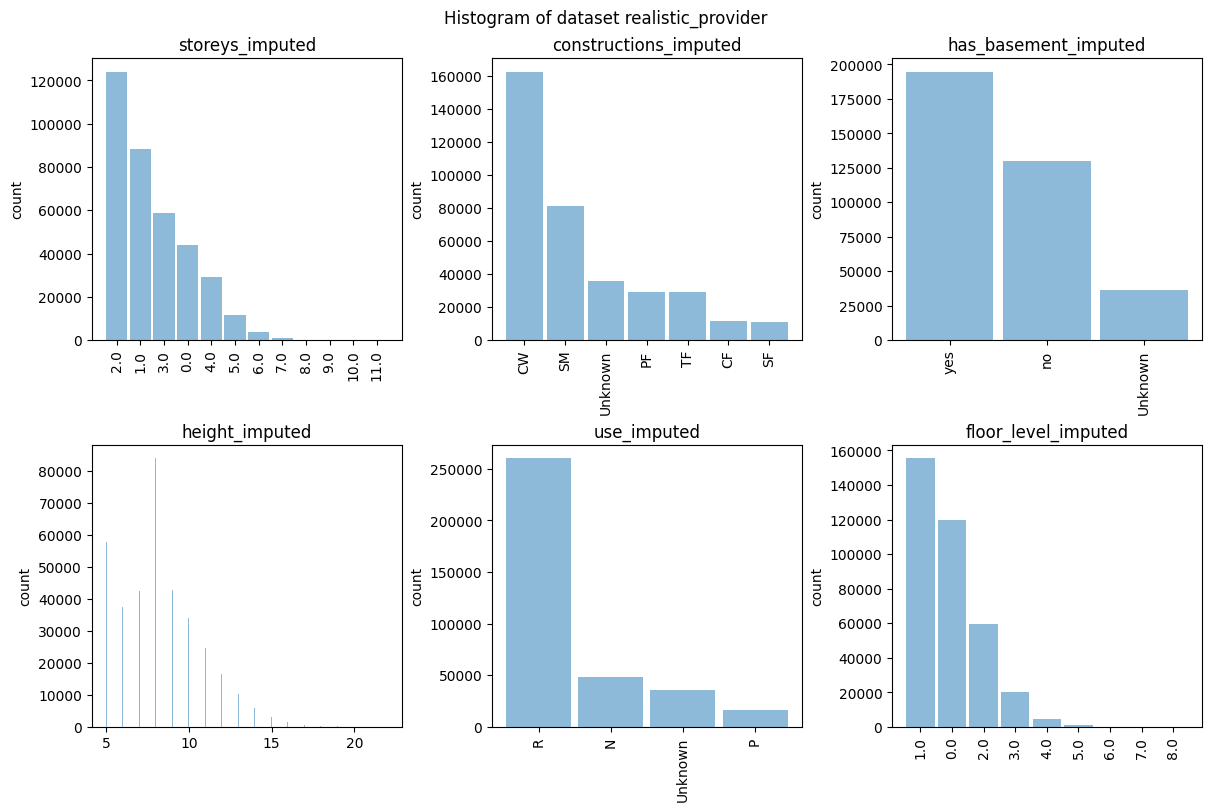
(Optional) Check the raw vendor feature distribution and see if you want to preprocess them in a specific way.
The default vendor feature preprocessing is provided in the vendor config. This step is optional and only needed if you want to check the raw vendor feature distribution.
[16]:
hist = raw_eda_intersect_session.results()[provider_client].plot_hist()
[17]:
raw_eda_intersect_session.results()[provider_client].describe(categorical=True).T
[17]:
| count | unique | top | freq | |
|---|---|---|---|---|
| storeys_imputed | 360868 | [0.0, 1.0, 2.0, 3.0, 4.0, 5.0, 6.0, 7.0, 8.0, ... | 2.0 | 124049 |
| constructions_imputed | 360868 | [CF, CW, PF, SF, SM, TF, Unknown] | CW | 162492 |
| has_basement_imputed | 360868 | [Unknown, no, yes] | yes | 194750 |
| use_imputed | 360868 | [N, P, R, Unknown] | R | 259986 |
| floor_level_imputed | 360868 | [0.0, 1.0, 2.0, 3.0, 4.0, 5.0, 6.0, 7.0, 8.0] | 1.0 | 155417 |
EDA with Feature Preprocessing
Feature Preprocessing
Specify how you want to preprocess your raw features in the config below.
The default vendor feature preprocessing is provided in the vendor config file. They dont have to be modified unless you want to try different preprocessing
First, define how the raw features should be preprocessed for the EDA. If you have already created and run a transform session, you can specify the session ID instead of running a new one.
[18]:
fp_data_config = {
    provider_client: vendor_eda_preprocessing_config
}

existing_transform_intersect_session_id = None
Apply feature preprocessing on the overlap between vendor data and carrier data.
[25]:
if existing_transform_intersect_session_id:
    transform_intersect_session = client.session(existing_transform_intersect_session_id)
    print(transform_intersect_session.id) # Prints the session ID for reference
else:
    transform_intersect_session = client.create_transform_session(
        name="Phase 1 eval - transform intersect",
        description="",
        data_config=fp_data_config,
        transform_mode="intersect",
        prl_session_id=prl_session.id
    ).start()

    task_group = (
        SessionTaskGroup(transform_intersect_session)
        #.add_task(iai_tb_aws_consumer.transform(dataset_name=consumer_train_name, client_name=consumer_client))\
        .add_task(iai_tb_aws_provider.transform(dataset_name=provider_name, client_name=provider_client))\
    )

    task_group_context = task_group.start()

    print(transform_intersect_session.id) # Prints the session ID for reference
571b9533b0
Wait for the session to complete. Session details are displayed on the Sessions page in your workspace UI. Use the session ID to identify your session.
EDA Intersect
Step 1: Specify the data config and the paired columns to analyze.
To perform bi-variate analysis between two specific columns between two datasets, specify the list of columns from both vendor and carrier.
2D histograms are generated for all pairs from these two lists to allow you to perform bi-variate analysis.
Note that the more columns you specify here, the heavier the computation and the longer the session run time. Therefore we recommend only including the columns that require bi-variate analysis.
[ ]:
eda_data_config = {consumer_client: consumer_bivariate_features,
                   provider_client: provider_univariate_features
                  }

pair_cols = {consumer_client: consumer_bivariate_features,
             provider_client: provider_bivariate_features
            }

#Optional - load an existing session instead of running a new one.
existing_eda_intersect_session_id = None
Step 2: Create and start an EDA intersect session. You can edit the session name and description. There is no need to edit other parameters in this example.
[28]:
if existing_eda_intersect_session_id:
    eda_session = client.session(existing_eda_intersect_session_id)
    print(eda_session.id)     #Prints the session ID for reference
else:
    eda_session = client.create_eda_session(
        name="Phase 1 eval - EDA intersect",
        description="Phase 1 eval - EDA intersect",
        data_config=eda_data_config,
        eda_mode="intersect",
        transform_session_id="23317362d1",
        prl_session_id=prl_session.id,
        cross_client_2d_pairs = pair_cols
    ).start()

    task_group = (
        SessionTaskGroup(eda_session)
        .add_task(iai_tb_aws_consumer.eda(dataset_name=consumer_train_name, client_name=consumer_client))\
        .add_task(iai_tb_aws_provider.eda(dataset_name=provider_name, client_name=provider_client))\
    )

    task_group_context = task_group.start()

    print(eda_session.id)      #Prints the session ID for reference
a852cc0bb2
Wait for the session to complete. Session details are displayed on the Sessions page in your workspace UI. Use the session ID to identify your session.
[29]:
provider_raw_individual_eda = raw_eda_individual_session.results()[provider_client]
provider_raw_intersect_eda = raw_eda_intersect_session.results()[provider_client]

intersect_results = eda_session.results()
provider_eda = intersect_results[provider_client]
consumer_eda = intersect_results[consumer_client]
df_info = intersect_results.info()
Univariate Analysis
We can check the vendor feature distribution after overlapping provider data with the vendor data, and also examine the potential distribution change before/after the data matching and before/after the feature preprocessing.
Feature distribution
Example EDA job: check the summary statistics of the vendor numerical features for the overlapped records.
[30]:
provider_eda.describe().T
[30]:
| count | mean | std | min | 25% | 50% | 75% | max | |
|---|---|---|---|---|---|---|---|---|
| height_imputed | 360869.0 | 8.252904 | 2.460404 | 5.0 | 6.020979 | 8.002974 | 9.981829 | 24.0 |
Check the summary statistics of the vendor categorical features for the overlapped records.
[ ]:
provider_eda.describe(categorical=True).T
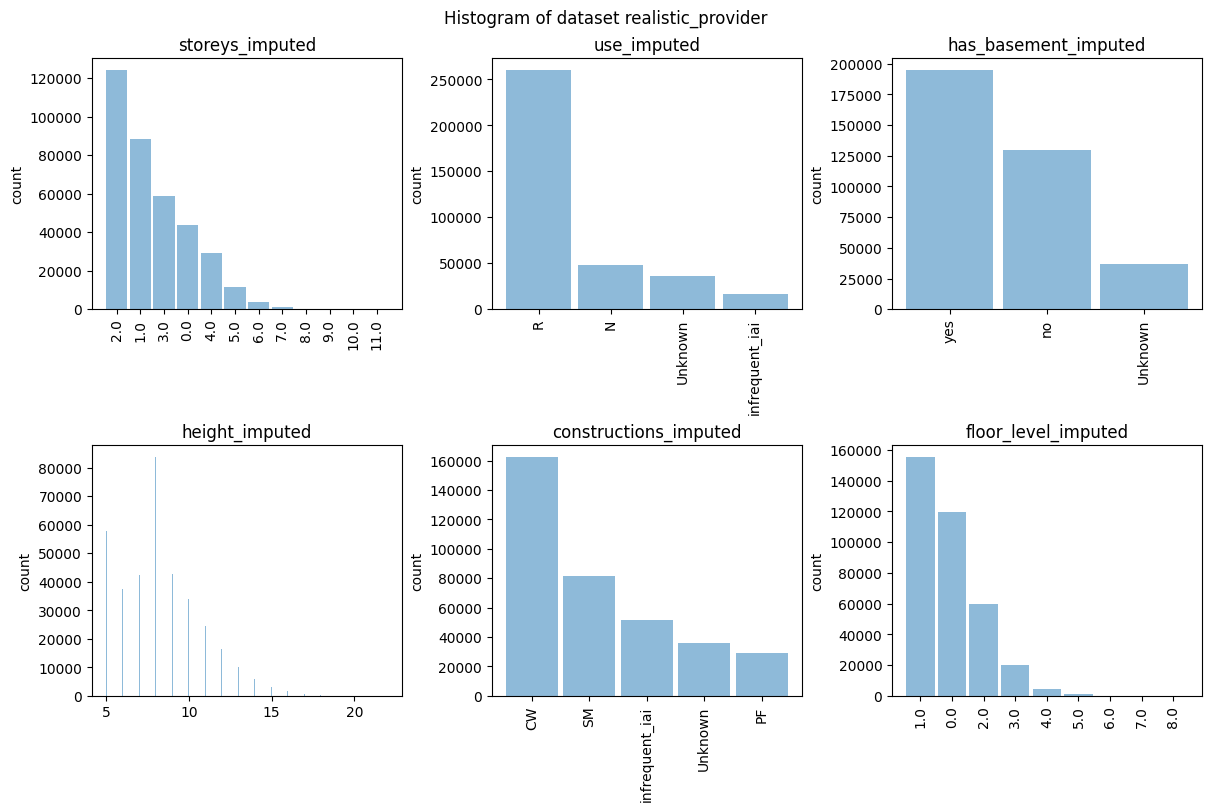
Example EDA job: Display histograms for all features.
[31]:
hist = provider_eda.plot_hist()
Check the distribution of the target variable after matching.
[32]:
consumer_eda[target].describe()
[32]:
count    3.608670e+05
mean     4.182813e+03
std      1.851324e+05
min      0.000000e+00
25%      3.840202e-57
50%      2.375498e-26
75%      2.441010e-08
max      7.775760e+07
Name: target, dtype: float64
Feature distribution comparison
EDA job: Compare by summary statistics a feature distribution between the whole dataset and the overlapped portion with/without preprocessing.
For the col, specify any continuous vendor feature name that you want to compare.
[33]:
col = 'height_imputed'

df = pd.concat([provider_raw_individual_eda[col].describe(), provider_raw_intersect_eda[col].describe(), provider_eda[col].describe()], axis=1)
df.columns = ['individual (raw)', 'intersect (raw)', 'intersect (preprocessed)']
df
[33]:
| individual (raw) | intersect (raw) | intersect (preprocessed) | |
|---|---|---|---|
| count | 4.999995e+06 | 360866.000000 | 360869.000000 |
| mean | 8.147706e+00 | 8.257403 | 8.252904 |
| std | 2.448904e+00 | 2.454346 | 2.460404 |
| min | 5.000000e+00 | 5.000000 | 5.000000 |
| 25% | 6.012627e+00 | 6.020976 | 6.020979 |
| 50% | 7.996590e+00 | 8.002972 | 8.002974 |
| 75% | 9.968646e+00 | 9.981819 | 9.981829 |
| max | 2.500000e+01 | 24.000000 | 24.000000 |
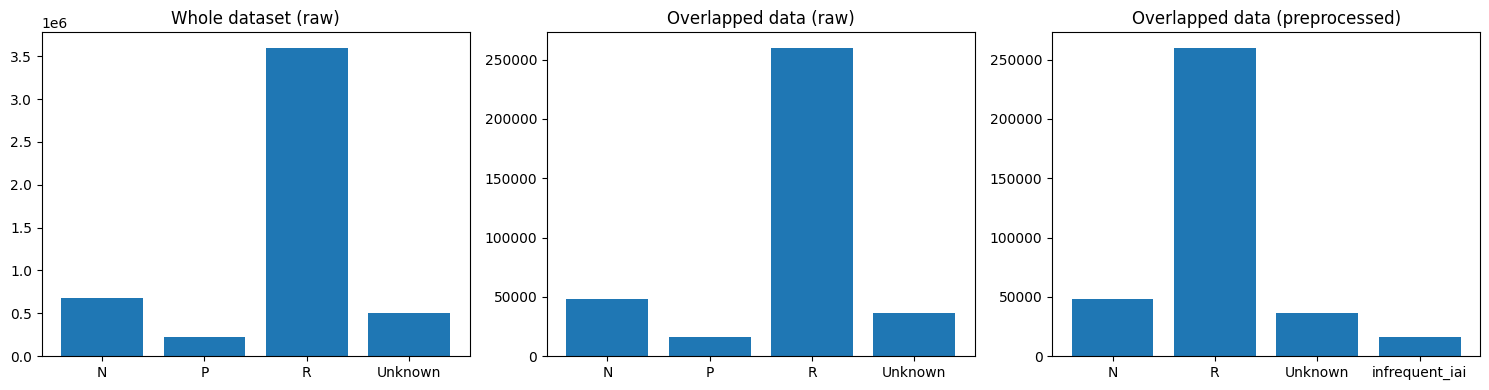
EDA job: Compare feature distribution between the whole dataset and the overlapped portion with/without preprocessing.
For the col, specify the feature name you to compare the distribution for.
[34]:
col = 'use_imputed'

height_raw_individual, bins_raw_individual = provider_raw_individual_eda[col].counts, provider_raw_individual_eda[col].bins
height_raw_intersect, bins_raw_intersect = provider_raw_intersect_eda[col].counts, provider_raw_intersect_eda[col].bins
height_intersect, bins_intersect = provider_eda[col].counts, provider_eda[col].bins

if (df_info[df_info['Column']==col].Dtype=='Categorical').all():
    sorted_raw_individual_pairs = sorted(zip(bins_raw_individual, height_raw_individual))
    plot_bins_raw_individual, plot_height_raw_individual = zip(*sorted_raw_individual_pairs)
    sorted_raw_intersect_pairs = sorted(zip(bins_raw_intersect, height_raw_intersect))
    plot_bins_raw_intersect, plot_height_raw_intersect = zip(*sorted_raw_intersect_pairs)
    sorted_intersect_pairs = sorted(zip(bins_intersect, height_intersect))
    plot_bins_intersect, plot_height_intersect = zip(*sorted_intersect_pairs)
else:
    plot_bins_raw_individual = bins_raw_individual[:-1]
    plot_height_raw_individual = height_raw_individual
    plot_bins_raw_intersect = bins_raw_intersect[:-1]
    plot_height_raw_intersect = height_raw_intersect
    plot_bins_intersect = bins_intersect[:-1]
    plot_height_intersect = height_intersect

fig, ax = plt.subplots(1,3, figsize=(15, 4))
ax[0].bar(plot_bins_raw_individual, plot_height_raw_individual)
ax[0].set_title('Whole dataset (raw)')

ax[1].bar(plot_bins_raw_intersect, plot_height_raw_intersect)
ax[1].set_title('Overlapped data (raw)')

ax[2].bar(plot_bins_intersect, plot_height_intersect)
ax[2].set_title('Overlapped data (preprocessed)')

plt.tight_layout()
plt.show()
Bivariate Analysis
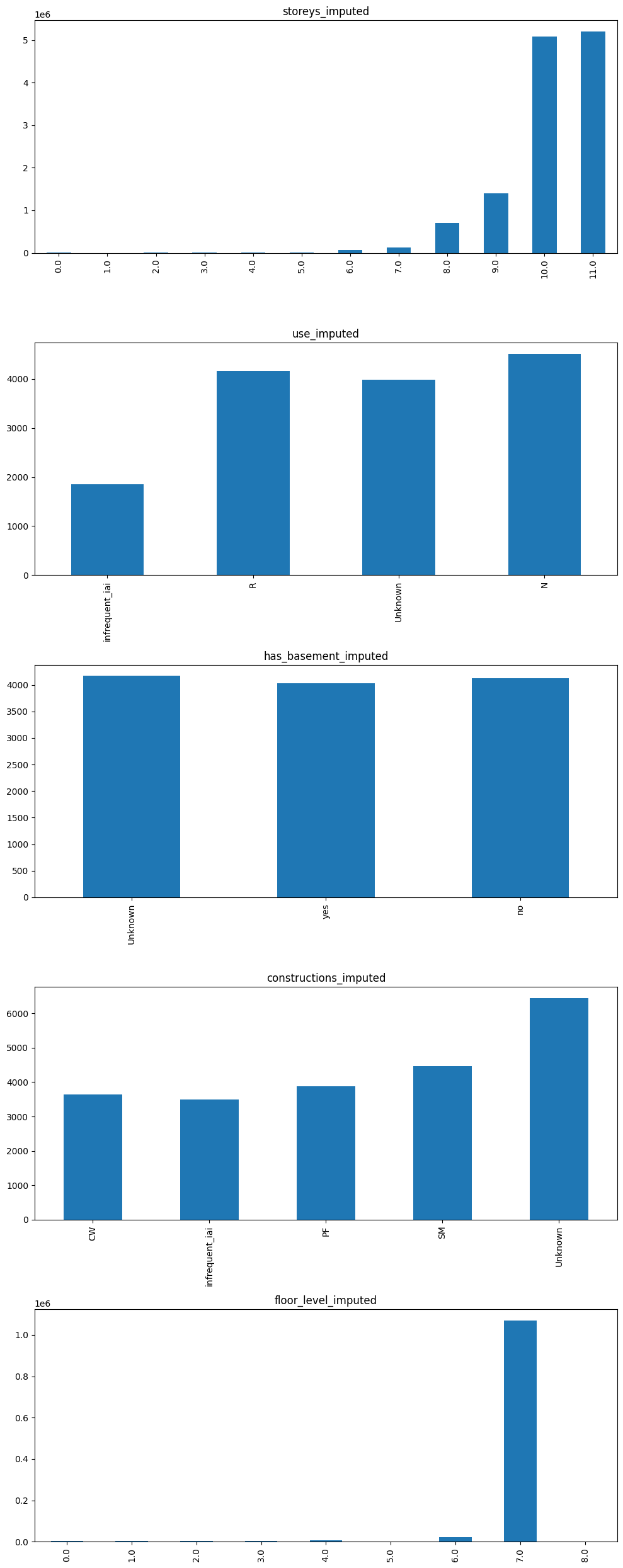
We can further examine the relationship between vendor features and target variable through some bivariate analysis, including
groupby (for categorical vendor features)
correlation (for continuous vendor features)
EDA job: Group By
[40]:
results = client.session("a852cc0bb2").results()
results.info()
[40]:
| Dataset Name | Column | Non-Null Count | Total Count | Dtype | |
|---|---|---|---|---|---|
| 0 | realistic_provider | storeys_imputed | 360868 | 360868 | Categorical |
| 1 | realistic_provider | use_imputed | 360868 | 360868 | Categorical |
| 2 | realistic_provider | has_basement_imputed | 360867 | 360867 | Categorical |
| 3 | realistic_provider | height_imputed | 360869 | 360869 | Continuous |
| 4 | realistic_provider | constructions_imputed | 360868 | 360868 | Categorical |
| 5 | realistic_provider | floor_level_imputed | 360868 | 360868 | Categorical |
| 6 | syn_carrier | target | 360867 | 360867 | Continuous |
[41]:
provider_cat_cols = list(df_info[(df_info.Dtype=='Categorical') & (df_info['Dataset Name']==provider_client)].Column)

fig, ax = plt.subplots(len(provider_cat_cols), 1, figsize=(10, 5*len(provider_cat_cols)))

for i in range(len(provider_cat_cols)):
    results.groupby(provider_eda[provider_cat_cols[i]])[consumer_eda[target]].mean().plot(kind='bar', ax=ax[i], title=provider_cat_cols[i])

plt.tight_layout()
plt.show()